Stop Guessing, Start Designing
One of the most common reasons for file rejection is incorrect document size. If your PDF is 8.5" x 11" but you ordered a 6" x 9" book, our system can't just "shrink" it without messing up your margins.
To solve this, we have built a custom Template Generator that creates a perfectly sized PDF for your specific project. This is especially critical for book covers, where the spine width changes based on your exact page count and paper choice.
Step-by-Step Guide
1. Access the Tool: Navigate to the "Tools" menu and select "Template Generator".
2. Configure Dimensions:
- Enter your Trim Width and Trim Height. For example, standard US Trade Paperback is 6" x 9". Standard Manga is roughly 5" x 7.5" or 5.5" x 7.75".
- Do not include bleed in these numbers. Enter the final cut size.
3. Select Binding Type:
- Saddle Stitch: Use this for booklets (stapled). The generator will give you a template for spreads.
- Perfect Bound: Use this for softcover books with a square spine. This enables the spine calculator.
4. Paper Selection (The Critical Step):
For Perfect Bound books, the width of your spine is determined by the "PPI" (Pages Per Inch) of the paper stock. A 400-page book on 60lb Uncoated paper is much thicker than a 400-page book on 80lb Gloss Text.
Our tool has the exact caliper (thickness) of all our house stocks programmed in. Select your Interior Paper and your Cover Paper. Enter your final Page Count.
5. Reading Direction:
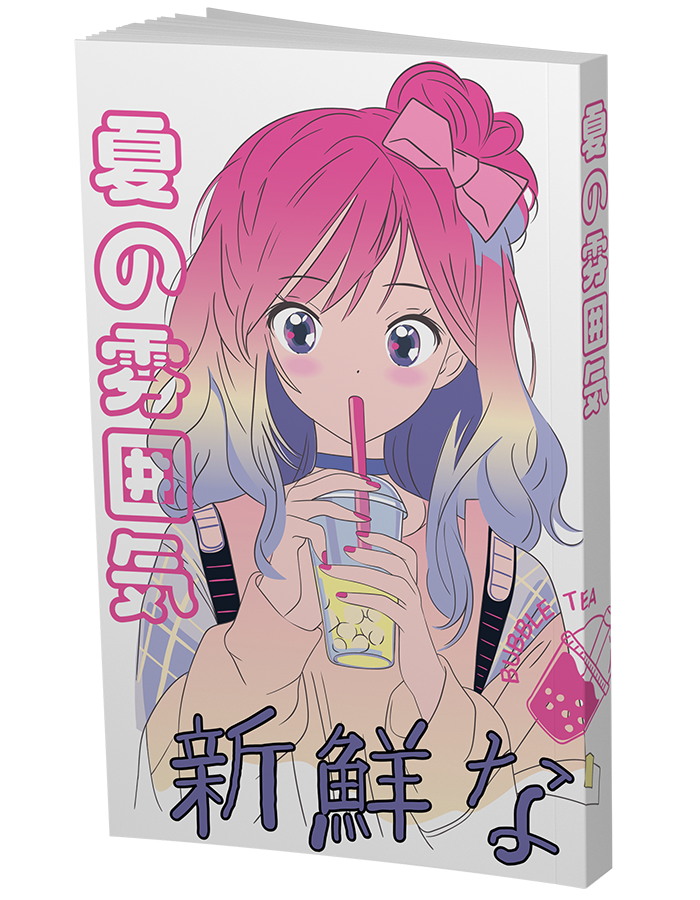
If you are printing Manga, toggle "Right to Left (RTL)". This will reverse the template layout so the back cover is on the left and the front cover is on the right, matching standard Japanese formatting.
How to Use the Template File
Once you download the PDF, open it in your design software (Photoshop, InDesign, Clip Studio Paint).
- Import: Place the template on its own layer at the very top of your layer stack.
- Multiply: Set the layer blending mode to "Multiply" so you can see your art underneath the lines.
- Design: Ensure your background art extends past the Red (Bleed) line. Keep text inside the Green (Safety) line.
- Export: Important! Turn off or hide the template layer before you export your final PDF. If you leave it on, the lines will be printed on your final book!